Download the App
Search "CLIAnywhere" on the App Store or Google Play to install the mobile client. Prefer not to install anything? The Web App runs directly in your browser with the same experience.
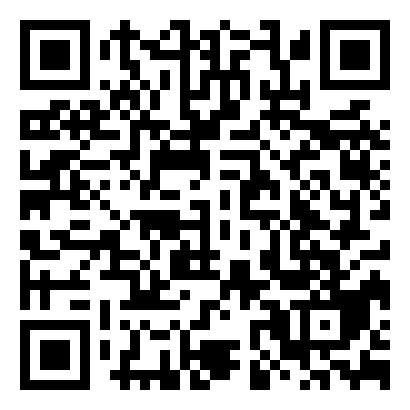
Scan the QR code with your phone to go straight to the download page. See the Download page for all client options.
Run the PC Daemon
The daemon is the small open-source agent that keeps your terminal sessions alive on your computer. Grab it from GitHub Releases, or build it from source with the commands below — pick your platform:
git clone https://github.com/CLIAnywhere/clianywhere_daemon.git
cd clianywhere_daemon
build-windows.batAfter the build completes, claw.exe will appear in the directory — double-click it to run. You can also double-click build-windows.bat directly in File Explorer.
Configure the Access Key
Open the app and create an access key, then link it to your computer in either direction — paste the key into the daemon, or scan the daemon's QR code with the app. The key is used only for the local SPAKE2 key exchange and is never uploaded to any server.
Once linked, your computer appears in the app's device list. Tap it, and you're looking at a live terminal running on your machine — with persistent sessions, file browsing and LAN web access ready to go. Head over to the Features page to see everything you can do.